MyTournament.info is an advanced application for organizing sports tournaments.
Within the application there is a dedicated page for the tournament officials
that allows referees to be assigned to matches quickly and easily.
You can access this page via:
Tools → Assign referees → Manual assignment → All matches.
Overview of the referee assignment page
The page is divided into several horizontal sections so tournament officials
can easily manage referee assignments and navigate through the schedule.
- Filters and match sheet layout selection
- Draggable referee buttons
- Match overview
- Bottom navigation bar

Referees are displayed at the top of the page as draggable buttons.
This allows referees to be assigned to matches using simple drag-and-drop.

At the bottom of the page there is a navigation bar with several useful actions.

Filtering matches
Matches can be filtered using several criteria:
- Category
- Group
- Team
- Referee
- Matches that still need to be played
- Minimum time between two matches refereed by the same referee
Tooltips can also be enabled to display additional information.

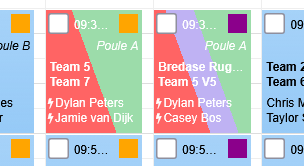
Matches that match the filter criteria are highlighted in green.
If a conflict occurs — for example when a referee is assigned to two matches at the same time —
the match will be highlighted in light red.
The match that most recently received a referee assignment
is highlighted in purple.
A match can also match multiple criteria simultaneously.
In that case multiple colored bars will be displayed.
Assigning referees using drag and drop
Referees can simply be dragged from the list at the top of the page
onto a match. Once dropped, the referee is assigned to that match.
The referee list also contains a button called
"Referee unknown".
Dragging this button onto a match will remove the referee from that match.
Selecting and printing match sheets
For matches that have not yet been played and therefore do not yet have a result,
a checkbox can be selected.
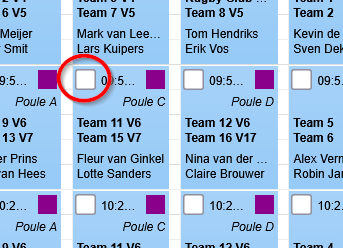
Match sheets can only be generated for these matches.
Matches that have already been played no longer display a checkbox.
When the print button is pressed, match sheets are generated as a PDF
using the layout selected at the top of the page.

- 6 per A4 page
- 4 per A4 page
- 2 per A4 page
- 1 per A4 page
- Team member list
Navigation within the tournament schedule
The bottom navigation bar provides the following functions:
- Scroll to the top of the page
- Scroll to the filter settings
- Scroll to the current time in the schedule
- Scroll to the bottom of the page
- Refresh the match schedule
- Go to the first day of the tournament
- Go to the previous day
- Go to the next day
- Go to the last day of the tournament
- Print match sheets for selected matches
- Uncheck all match sheet checkboxes
The date navigation buttons are only enabled when the tournament
takes place over multiple days.

Thanks to the combination of filters, visual indicators,
drag-and-drop functionality and quick navigation,
tournament officials always have a clear overview
of the referee assignments.